Tracking AI Traffic Separately
Hi everyone, this is Neo.
What percentage of your website’s traffic comes from AI referrals? Still in the dark?
Time to stop guessing!
Today, I’m going to show you how to pull these “invisible” AI traffic sources out of GA4, so we can finally see our AI traffic clearly.
Why Track AI Traffic Separately?
In simple terms, understanding where AI traffic comes from helps us:
- Understand how much impact AI has on our overall site traffic.
- Measure the quality of this traffic — are the users it brings actually our target customers?
- Adjust our content strategy so our content gets crawled and recommended by AI platforms more easily.
- Compare it against other channels (like Google SEO or Google Ads) to see what ROI AI traffic delivers.
Enough talk — let’s get straight to it!
Step 1: Isolate Those AI Traffic Sources in GA4 Explorations
First, we need to pull the AI traffic hiding among all the other sources into its own corner.
-
Open your GA4 and find “Explore” in the left menu.
-
Create a new “Blank” exploration report.
-
Under “Dimensions,” click the “+” and import “Session source / medium”.
-
Under “Metrics,” click “+” again and import “Sessions”. You can also add metrics like “Engaged sessions” or “Key events” to see things more clearly.
-
Here comes the most critical step! Under “Segments” on the left, create a new “Session segment.”
-
Name this segment, e.g., “AI Sources,” then add a filter:
- Choose “Session source”
- Set the match type to “matches regex”
- Paste in the following regex:
.*(aitastic\.app|bnngpt\.com|chat-gpt\.org|chatgpt\.com|claude\.ai|copilot\.microsoft\.com|copy\.ai|edgepilot|edgeservices|gemini\.google\.com|iask\.ai|neeva|nimble\.ai|openai\.com|perplexity|writesonic\.com).*
Neo’s tip: This regex covers the domains of the mainstream AI tools right now. AI evolves fast and new tools keep appearing — check your traffic sources periodically, and whenever you spot a new AI source, just add its domain to the regex. Not comfortable writing regex? Just hand your requirement to ChatGPT — it’ll sort it out for you!
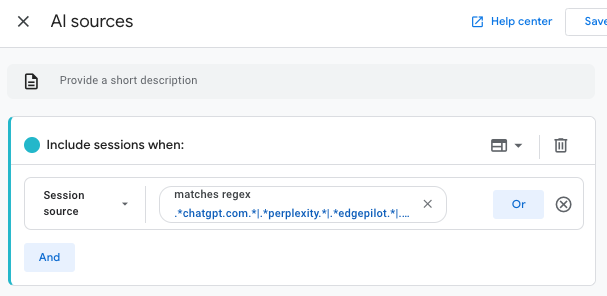
- Don’t forget to click “Save and apply”.
Now your exploration report’s left panel should look something like this:
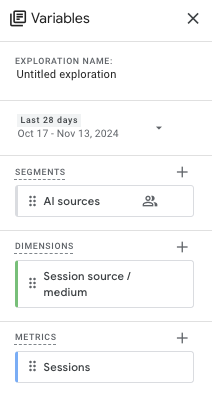
Step 2: See AI Traffic Trends at a Glance
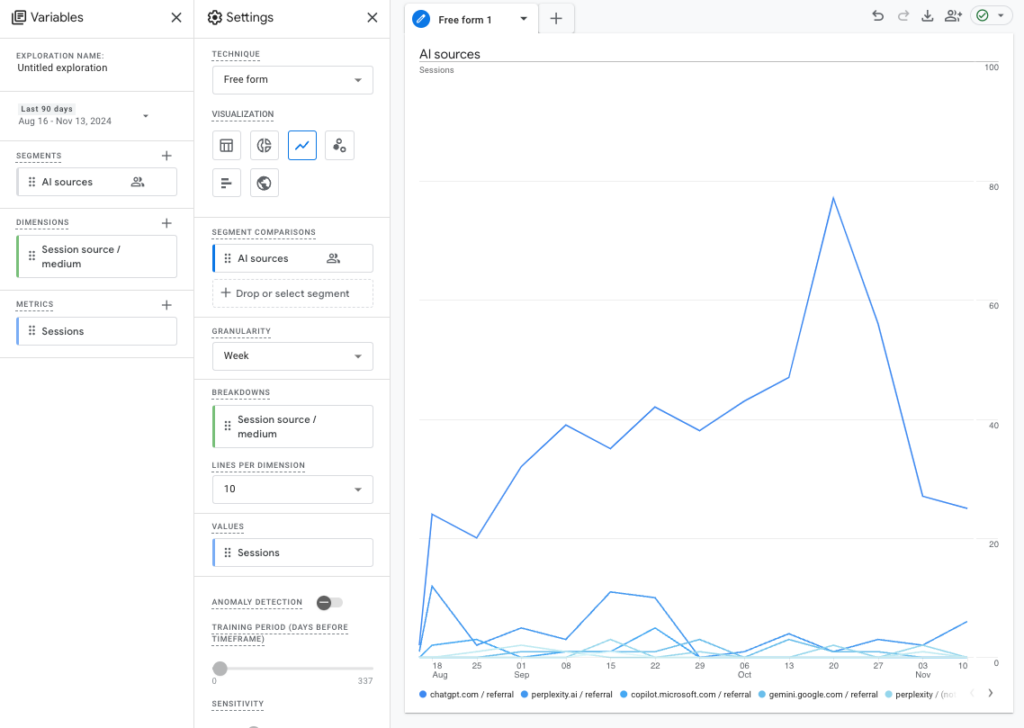
With the segment built, we can now chart AI traffic trends over time.
- In the exploration report’s “Tab settings,” change the “Visualization” from a table to a “Line chart”.
- Under “Segment Comparisons,” drag in the “AI Sources” segment we just created.
- Now you can visually see how AI traffic has changed over a period of time.
Step 3: Create a Dedicated “AI” Channel Group
Explorations are flexible, but you have to open them up every time you want to look — a bit tedious. To make daily monitoring easy, let’s set up “AI” as its own channel group, just like Organic Search or Direct.
- Click “Admin” in the bottom left corner.
- Under “Data display,” find “Channel groups”.
- Click “Create new channel group”.
- Give it a name, like “Custom channel group with AI.”
- Click “Add new channel” and name the channel “AI.”
- Set the conditions the same way we did in the segment: Source, matches regex, then paste that same regex in.
- Very important step: click “Reorder” and drag our new “AI” channel to before “Referral.” That way GA4 attributes traffic to the AI channel first, instead of lumping it all in as referral traffic. Finally, save.
Step 4: View the AI Channel in the Traffic Acquisition Report
After setting up the channel group, GA4 needs some time to collect data (it doesn’t take effect instantly). After a day or two, you can:
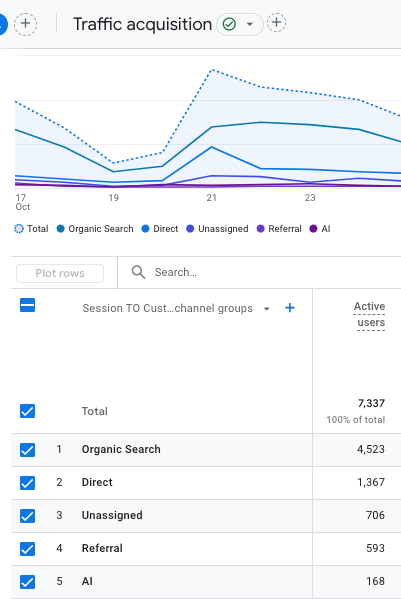
- Go to “Reports” > “Traffic acquisition”.
- At the top left of the report table there’s a dropdown, defaulting to “Default Channel Group.” Click it and switch to the channel group you just created, like “Custom channel group with AI.”
And there it is — a clean “AI” channel in your report!
Summary
And that’s it — with the steps above, you’ve set up AI traffic tracking in GA4. This is just the first step, though. What matters more is keeping an eye on the data, analyzing the behavior of AI-driven users — what content interests them, what their conversion paths look like — and feeding that back into our SEO and content marketing strategy.
In the AI era, the traffic game is changing. Hope today’s share helps you move a step faster and grab this new wave of opportunity!
If you hit any issues during setup, drop me a comment below.